> ## Documentation Index
> Fetch the complete documentation index at: https://docs-nce.global-e.com/llms.txt
> Use this file to discover all available pages before exploring further.
# Configuring the Global-e Settings
## Plugin Configuration Page
You can use one of the following plug configuration methods:
* [Configuring Global-e Cross Border Settings via the WooCommerce Settings Menu](/4--configuring-the-global-e-settings#configuring-global-e-cross-border-settings-via-the-woocommerce-settings-menu)
* [Customizing Fields within the Global-e API Settings Section](/4--configuring-the-global-e-settings#customizing-fields-within-the-global-e-api-settings-section)
### Configuring Global-e Cross Border Settings via the WooCommerce Settings Menu
#### To configure Global-e Cross Border Settings via the WooCommerce Settings menu
1. Navigate to *Woocommerce > Settings*.
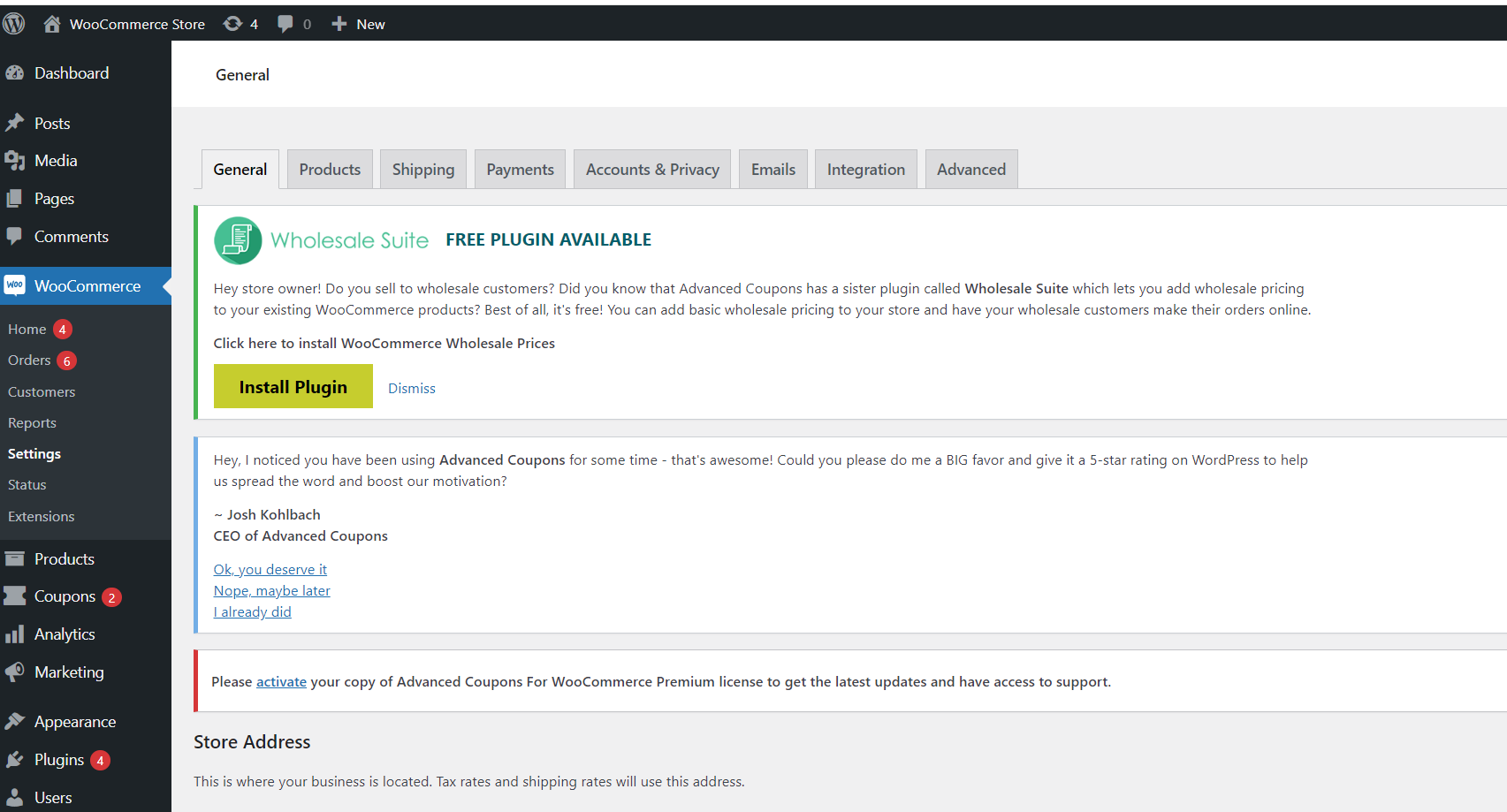 2. Click the *Integration* tab.
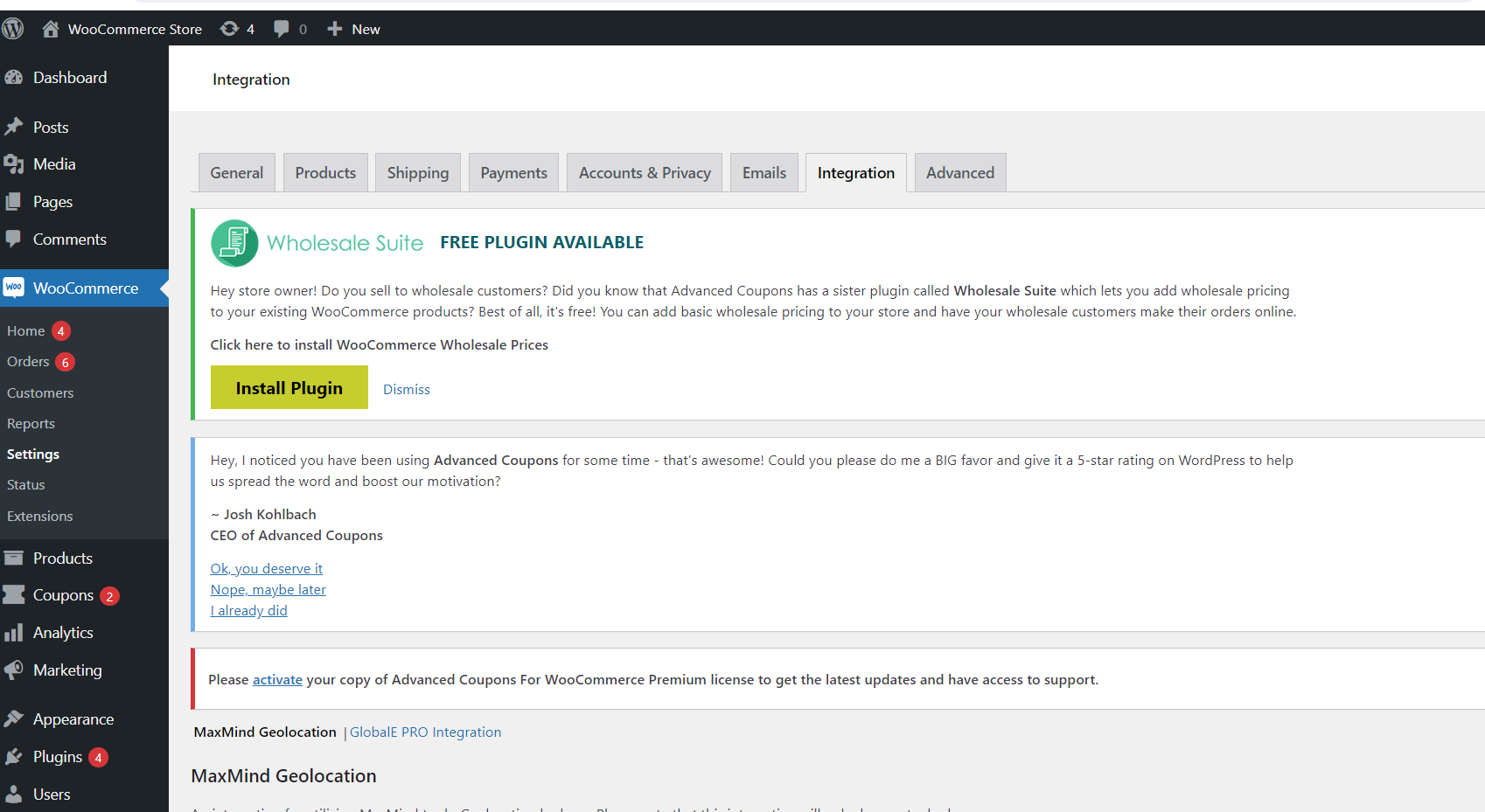 3. In the *GlobalE Pro Integration* section, configure the fields as needed:
 The following table describes the parameters in the Global-E API Settings section:
| Parameters | Description and Settings |
| - | - |
| Enable JS/CSS Include | ON/OFF switcher of the Global-e extension.Values: yes (default), no.If set to "no", the system does not include the Global-e CSS and JavaScript.If set to "yes", the Global-e script appears on your website. However, this script only becomes functional after the extension has been activated by Global-e. While waiting for activation, you can view the solution by adding the following query string to the site's URL: `?showpro=true`. |
| Merchant ID | Merchant Account ID in the Global-e system (provided by Global-e as part of the merchant's onboarding process). |
| Merchant GUID | Private key of the Merchant Account ID in Global-e (provided by Global-e as part of the merchant's onboarding process). |
| API Path | Path to the Global-e API.
The following table describes the parameters in the Global-E API Settings section:
| Parameters | Description and Settings |
| - | - |
| Enable JS/CSS Include | ON/OFF switcher of the Global-e extension.Values: yes (default), no.If set to "no", the system does not include the Global-e CSS and JavaScript.If set to "yes", the Global-e script appears on your website. However, this script only becomes functional after the extension has been activated by Global-e. While waiting for activation, you can view the solution by adding the following query string to the site's URL: `?showpro=true`. |
| Merchant ID | Merchant Account ID in the Global-e system (provided by Global-e as part of the merchant's onboarding process). |
| Merchant GUID | Private key of the Merchant Account ID in Global-e (provided by Global-e as part of the merchant's onboarding process). |
| API Path | Path to the Global-e API.
QA environment: //glite.bglobale.com/
Staging environment: //stglite.bglobale.com/
Production environment: //gex.global-e.com/ |
The following table describes the parameters in the Products section:
| Parameter | Description |
| - | - |
| Extra Product Attributes | You can create product attributes using the standard WooCommerce functionality.
By default, the Global-e extension gets and supports the Size and Color attributes. These attributes are displayed in the Global-e checkout screen, transactional emails, and the Merchant Portal View Orders interface, next to the related products.
If you create additional attributes in WooCommerce, these must also be configured in the extension's Configuration screen. In the Extra Product Attributes field, add the attribute slugs as comma-separated values. |
### Customizing Fields within the Global-e API Settings Section
#### To customize fields within the Global-e API Settings Section
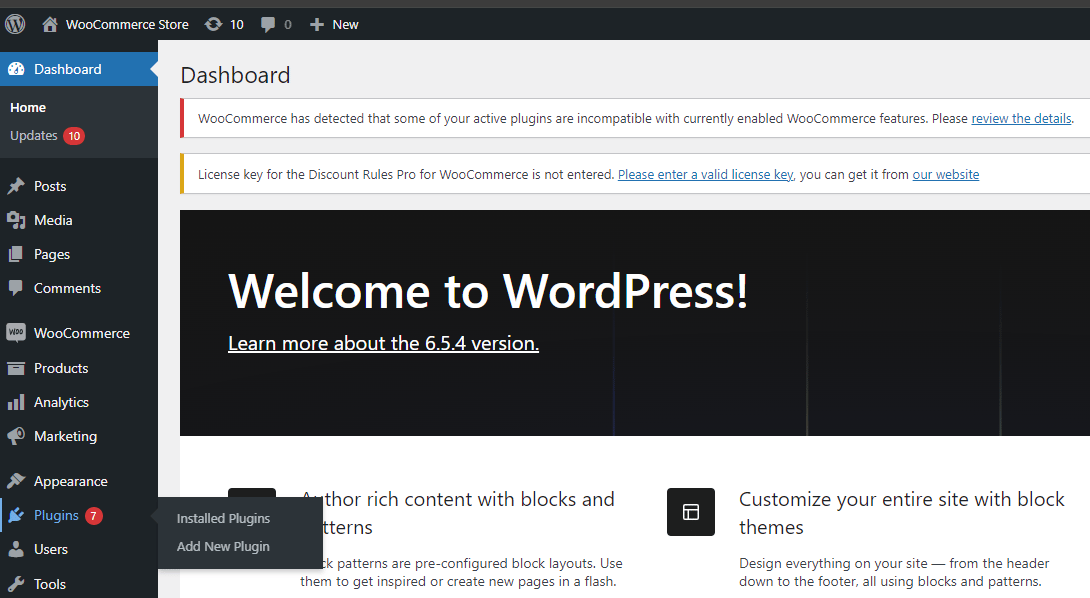
1. Navigate to *Plugins > Installed Plugins*.
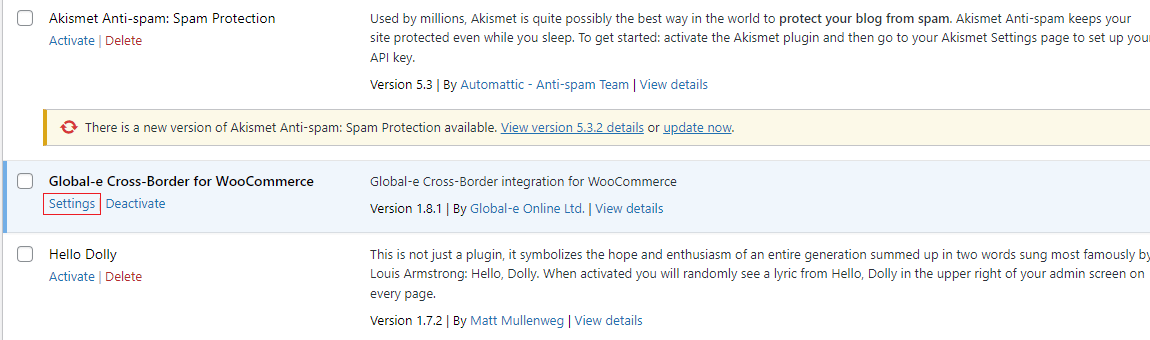
 2. In the Global-e Cross-Border for WooCommerce section, click Settings.
 ## Global-E API Settings
| Setting | Default | Description |
| - | - | - |
| Enable JS/CSS include | Off | Allows you to enable/disable external Global-e JavaScript and CSS includes. For headless integration, the setting should be disabled. |
| Merchant ID | | The merchant Identifier which allows you to identify JavaScript and CSS includes. |
| Merchant GUID | | The API key that is used for communication to and from Global-e. |
| API path | [//stglite.bglobale.com/](https://stglite.bglobale.com/) | Defines the Global-e Module URL.
## Global-E API Settings
| Setting | Default | Description |
| - | - | - |
| Enable JS/CSS include | Off | Allows you to enable/disable external Global-e JavaScript and CSS includes. For headless integration, the setting should be disabled. |
| Merchant ID | | The merchant Identifier which allows you to identify JavaScript and CSS includes. |
| Merchant GUID | | The API key that is used for communication to and from Global-e. |
| API path | [//stglite.bglobale.com/](https://stglite.bglobale.com/) | Defines the Global-e Module URL.
Possible Values:
Integration Environment: [//intgepi.bglobale.com/](https://intgepi.bglobale.com/)
Staging Environment: [//stgepi.bglobale.com/](https://stgepi.bglobale.com/)
Production Environment: [//gepi.global-e.com/](https://gepi.global-e.com/) |
| API Base URL | [https://connect.bglobale.com/](https://connect.bglobale.com/) | Determines the Global-e environment with which to communicate.
Possible values:
Integration Environment: [https://connect.bglobale.com/](https://connect.bglobale.com/)
Production Environment: [https://api.global-e.com/](https://api.global-e.com/) |
| Include mode | PRO | Defines the Global-e Module variation.
Possible values:
PRO
GEM |
| Global-e data cookie name | GlobalE\_Data | Defines the cookie name. The cookie is set by the plugin and is used by the Global-e Module. |
### Products
Configure these settings to synchronize specific product attributes with Global-e.
| Setting | Default | Description |
| - | - | - |
| Extra product attributes | | Slugs of custom attributes with copa separator (like: "attr1,attr2,attr3") |
| Product attributes map | | Product attributes map. Json. Attributes slug => Attribute sign. (example: \{"attribute\_pa\_size":"size"} ) |
| Brand Attribute | | The technical name of a product custom field used as an extra product brand attribute. |
| Product class code attribute | | Product class code attribute |
| Country of origin attribute | | The technical name of a product custom field used as an extra product country of origin attribute. |
| Description Attribute | | The technical name of a product custom field used as an extra product description attribute. |
| HS Code Attribute | | The technical name of a product custom field used as an extra product HS Code attribute. |
| Weight Attribute | | The technical name of a product custom field used as an extra product weight attribute. |
| Enable save product list | Ticked | Enables/disables saving product data on the Global‑e system. |
### Order
| Setting | Default | Description |
| - | - | - |
| Unique Product identifier | SKU | Defines which product attribute is considered a unique identifier.
Possible values:
SKU
Product ID / Variation ID |
| Skip Cart Validation | False | Enables/disables cart validation on order create notifications. |
| Use Shipping Method Mapping | Plugin map | Defines how the shipping method is mapped.
Possible values:
Plugin map - shipping method name “globale" will be used.
Default - shipping method name will be used in the format: “Global-e :" plus `ShippingMethodName`.
Globale map - shipping method name will be used in the format: `ShippingMethodCode`. |
| Save country name as | Country name | Defines how the country of address is saved in Woocommerce.
Possible values:
Country name - full country name, like the United Kingdom.
Country ISO code - country ISO code, like the UK. |
| Add extra metadata to order items | | Extra meta, that should be added to order items .Json. MetaKey => MetaValue.(example: \{"internationalOrder":"YES"} ) |
| Reconciliation VAT | Standard flow | Define how reconciliation VAT is processed.
Possible values:
Standard flow - product prices contain reconciliation VAT.
Deduct - reconciliation VAT is deducted from product prices. |
| Restock refunded products | Ticked | If checked - the system will restock products on order refund. |
| Enable logger | Ticked | Enables/disables module logging. |
| Add shipping cost to totals | Unticked | If checked - the system will add the shipping cost to the product's total cost. |
| Allow order currency from request. | Unticked | If checked - allows a setting order currency different from a store based on the order creation request value. |
### Checkout / Order
| Setting | Default | Description |
| - | - | - |
| JS Code on Checkout Page | var glegem = glegem \|\| function() \{
(window\["glegem"].q = window\["glegem"].q \|\| \[]).push(arguments)
};
glegem("OnCheckoutStepLoaded", function(data) \{
console.log('OnCheckoutStepLoaded')
switch (data.StepId) \{
case data.Steps.LOADED:
console.log('OnCheckoutStepLoaded:LOADED')
break;
case data.Steps.CONFIRMATION:
console.log('OnCheckoutStepLoaded:CONFIRMATION')
if (data.IsSuccess && !data.IsPageReload) \{
console.log('OnCheckoutStepLoaded:IsSuccess')
// send some statistic
}
break;
}
}); | JavaScript code that should run on the checkout page.For more specific example snippets, see Client Analytics. |
| Remove coupons from cart when switching countries | Unticked | Remove coupons from cart when switching from domestic country to any other one. |
| Store Code | | This is a store code. It is used by Global-e to distinguish sales channels on own domains and/or subfolders. |
## Discounts
The Global-e plugin for Woocommerce supports three types of discounts:
* Native Woocommerce discounts. See the [Native guide](https://woocommerce.com/document/coupon-management/).
* Discounts provided by third-party module, [Discount Rules for WooCommerce](https://wordpress.org/plugins/woo-discount-rules/).
* Discounts provided by third-party module, [Advanced Coupons](https://wordpress.org/plugins/advanced-coupons-for-woocommerce-free/).
## Clear Cart
**Clear Cart:** This AJAX endpoint clears the cart after order confirmation.
\[POST] [https://example.com/global-e/?wc-api=pro-cart-clear](https://example.com/global-e/?wc-api=pro-cart-clear)