> ## Documentation Index
> Fetch the complete documentation index at: https://docs-nce.global-e.com/llms.txt
> Use this file to discover all available pages before exploring further.
# Configuring Auto-Refunds
Auto-refund issues refunds based on events (immediate or delayed) you select, and is configured per policy rule.
## To configure auto-refund
1. Complete accessing your policy rules.
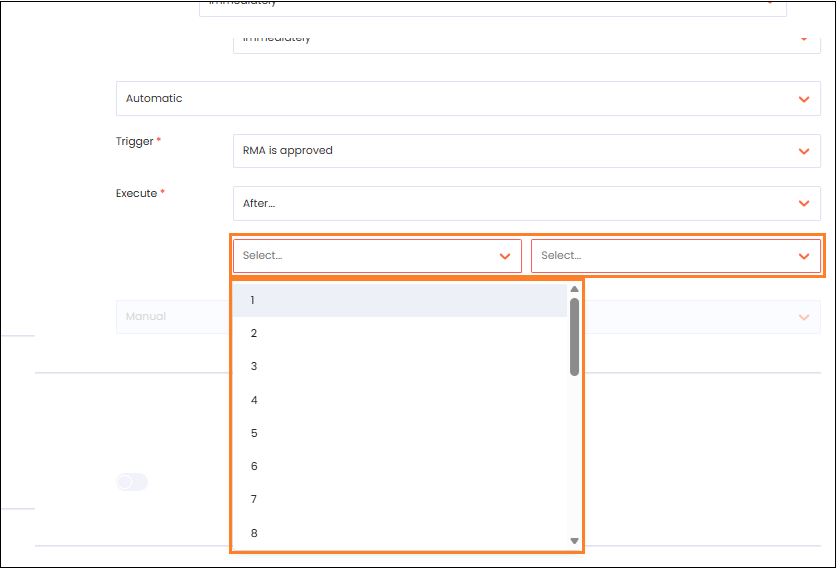
2. In the dropdown menu located to the right of **Refund Process**, select **Automatic**.The **Trigger** and **Execute** dropdown menus are displayed.
3. Set the **Trigger** event:
* RMA is approved
* Shipment is in transit
* Shipment has been received
* Items have been validated
The available trigger options vary according to trigger selection and account. For example, selecting Items have been disabled displays the **Validation** dropdown menu.
4. In the **Execute** field, select one of the following:
* Immediately
* After...
5. Do one of the following:
* If you selected Immediately, skip to [Step 6](/configuring-auto-refunds).
* If you selected **After...**, set the following:
* Number value
* Time unit
 6. Click the **save icon**.
The save icon is only displayed when you change your Approval Process selection.
6. Click the **save icon**.
The save icon is only displayed when you change your Approval Process selection.