> ## Documentation Index
> Fetch the complete documentation index at: https://docs-nce.global-e.com/llms.txt
> Use this file to discover all available pages before exploring further.
# Refunds
**For details about refunding an order in Shopify, refer to the Shopify Native [Refund](/global-e-orders-in-shopify#refund) section.**
## Overview
Users with Merchant CS Admin permissions can create refunds.
Use the Refunds feature for orders that have already been dispatched to the customer.
To cancel a settlement or a refund of stock items, amend the order before the order can be processed on the Global-e Merchant Portal and shipped to the customer. See [Amending Order Products](/managing-orders-merchant-portal#amend-order-line-items-and-quantities-282087).
Global‑e monitors and rectifies all refunds that failed or are in pending status.
## Issuing a Refund
**To refund an order:**
1. From the Global‑e Merchant Admin, go to **Orders**\*\*> View Orders\*\*.
2. Find the relevant order (enter the order information and click **Find and View**) and open it.
3. Make sure the order is in Dispatched Status.
4. On the Order Details screen, click the **Refunds** tab.
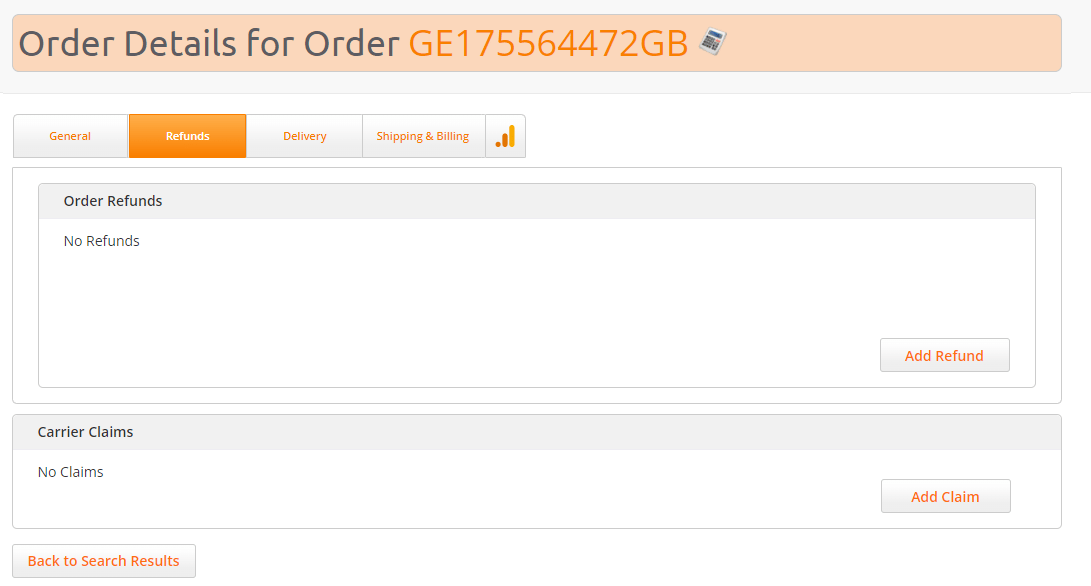 5. Click **Add Refund**.
The Refunds screen opens.
5. Click **Add Refund**.
The Refunds screen opens.
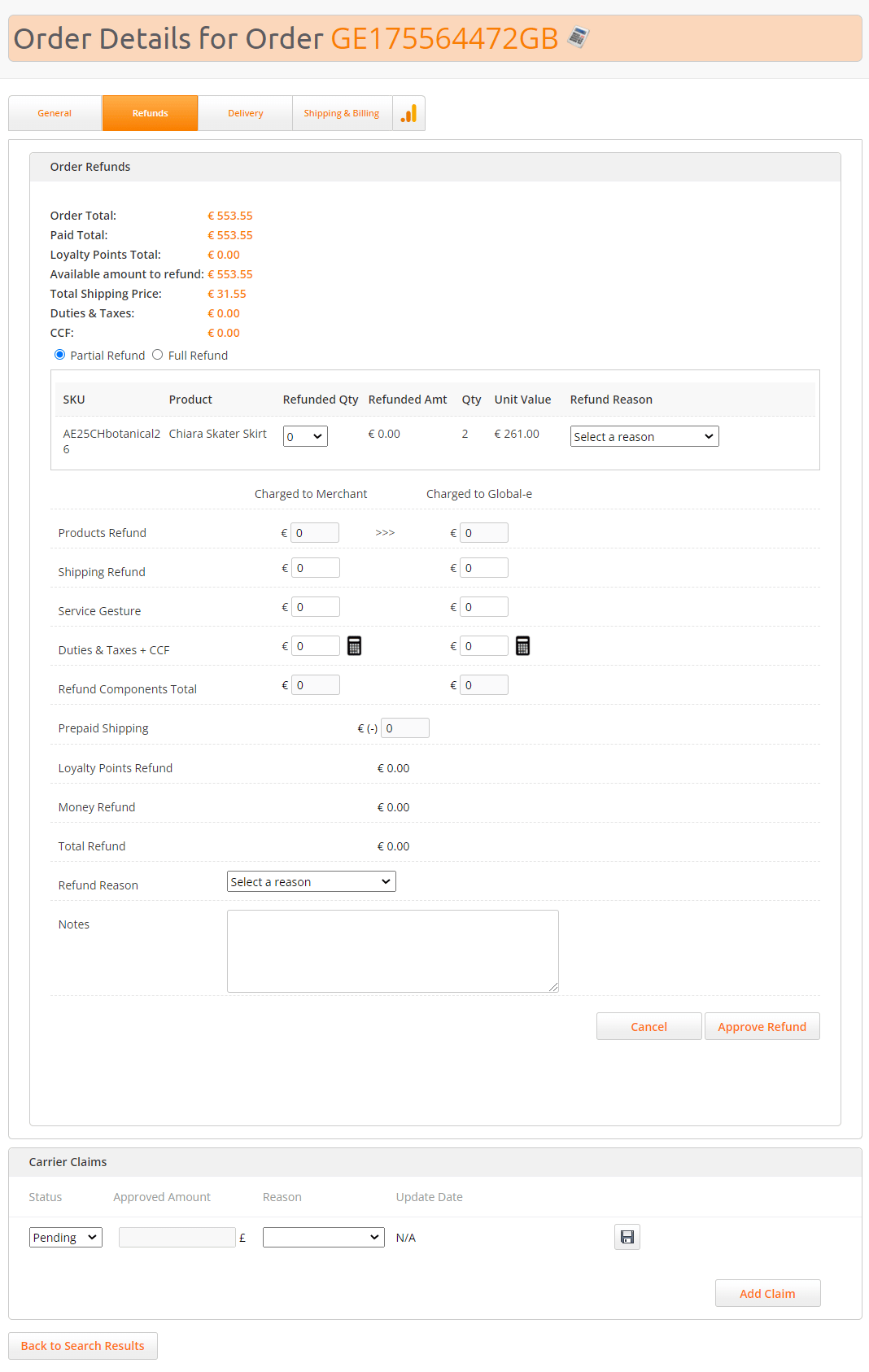 The following information is displayed:
| Field | Description |
| - | - |
| Order Total | The total amount that the customer paid for the order |
| Paid Total | The amount of the order that was paid |
| Loyalty Points Total | The value of the loyalty credit used to pay for the order, in the customer's currency |
| Available amount to refund | The amount that can be refunded. If previous refunds were performed for that order, the amount to be refunded will be lower than the order total. |
| Total Shipping Price | The total shipping price paid by the customer |
| Duties & Taxes | The duties paid by the customer |
| CCF | The customs clearance fees paid by the customer |
6. Select the type of refund: Full Refund or Partial Refund.
7. Click **Approve Refund**.
## Full Refund
If you select Full Refund, all the fields in the Refunds screen are automatically populated.
## Partial Refund
To perform a Partial Refund, enter the following information.
| Field | Steps |
| - | - |
| Products Refund | Create a refund for products: in the products list, select the Refunded Qty and the Refund Reason. The Products Refund field is populated according to the chosen quantities. |
| Shipping Refund | To create a full or partial refund for shipping, enter the amount in this field. |
| Service Gesture | Use this field to refund customers amounts that are not associated with products, shipping fees, or duties & taxes. |
| Duties and Taxes + CCF | To refund duties & taxes, enter the amount in the Duties & Taxes + CCF field. Generally, customs authorities do not refund duties and taxes that have been paid. Refunding these fees to customers is at the merchant’s sole discretion and expense. |
| Refund Components total | This field calculates automatically and shows all refund components listed above. |
| Prepaid Shipping | To deduct the cost of prepaid return shipping, enter the amount here. The refund cost shown to the customer on the Returns Portal is also listed under Return Requests: Merchant Portal **> Orders > Returns**. |
| Loyalty Points Refund | |
| Money Refund | |
| Total Refund | This field shows the total refund amount to be transferred to the customer’s original payment method |
| Refund Reason | Use this drop-down to define the reason for the refund |
| Notes | Enter refund note if applicable |
The following information is displayed:
| Field | Description |
| - | - |
| Order Total | The total amount that the customer paid for the order |
| Paid Total | The amount of the order that was paid |
| Loyalty Points Total | The value of the loyalty credit used to pay for the order, in the customer's currency |
| Available amount to refund | The amount that can be refunded. If previous refunds were performed for that order, the amount to be refunded will be lower than the order total. |
| Total Shipping Price | The total shipping price paid by the customer |
| Duties & Taxes | The duties paid by the customer |
| CCF | The customs clearance fees paid by the customer |
6. Select the type of refund: Full Refund or Partial Refund.
7. Click **Approve Refund**.
## Full Refund
If you select Full Refund, all the fields in the Refunds screen are automatically populated.
## Partial Refund
To perform a Partial Refund, enter the following information.
| Field | Steps |
| - | - |
| Products Refund | Create a refund for products: in the products list, select the Refunded Qty and the Refund Reason. The Products Refund field is populated according to the chosen quantities. |
| Shipping Refund | To create a full or partial refund for shipping, enter the amount in this field. |
| Service Gesture | Use this field to refund customers amounts that are not associated with products, shipping fees, or duties & taxes. |
| Duties and Taxes + CCF | To refund duties & taxes, enter the amount in the Duties & Taxes + CCF field. Generally, customs authorities do not refund duties and taxes that have been paid. Refunding these fees to customers is at the merchant’s sole discretion and expense. |
| Refund Components total | This field calculates automatically and shows all refund components listed above. |
| Prepaid Shipping | To deduct the cost of prepaid return shipping, enter the amount here. The refund cost shown to the customer on the Returns Portal is also listed under Return Requests: Merchant Portal **> Orders > Returns**. |
| Loyalty Points Refund | |
| Money Refund | |
| Total Refund | This field shows the total refund amount to be transferred to the customer’s original payment method |
| Refund Reason | Use this drop-down to define the reason for the refund |
| Notes | Enter refund note if applicable |