

standardcode and mididentifier.
What you need to do
-
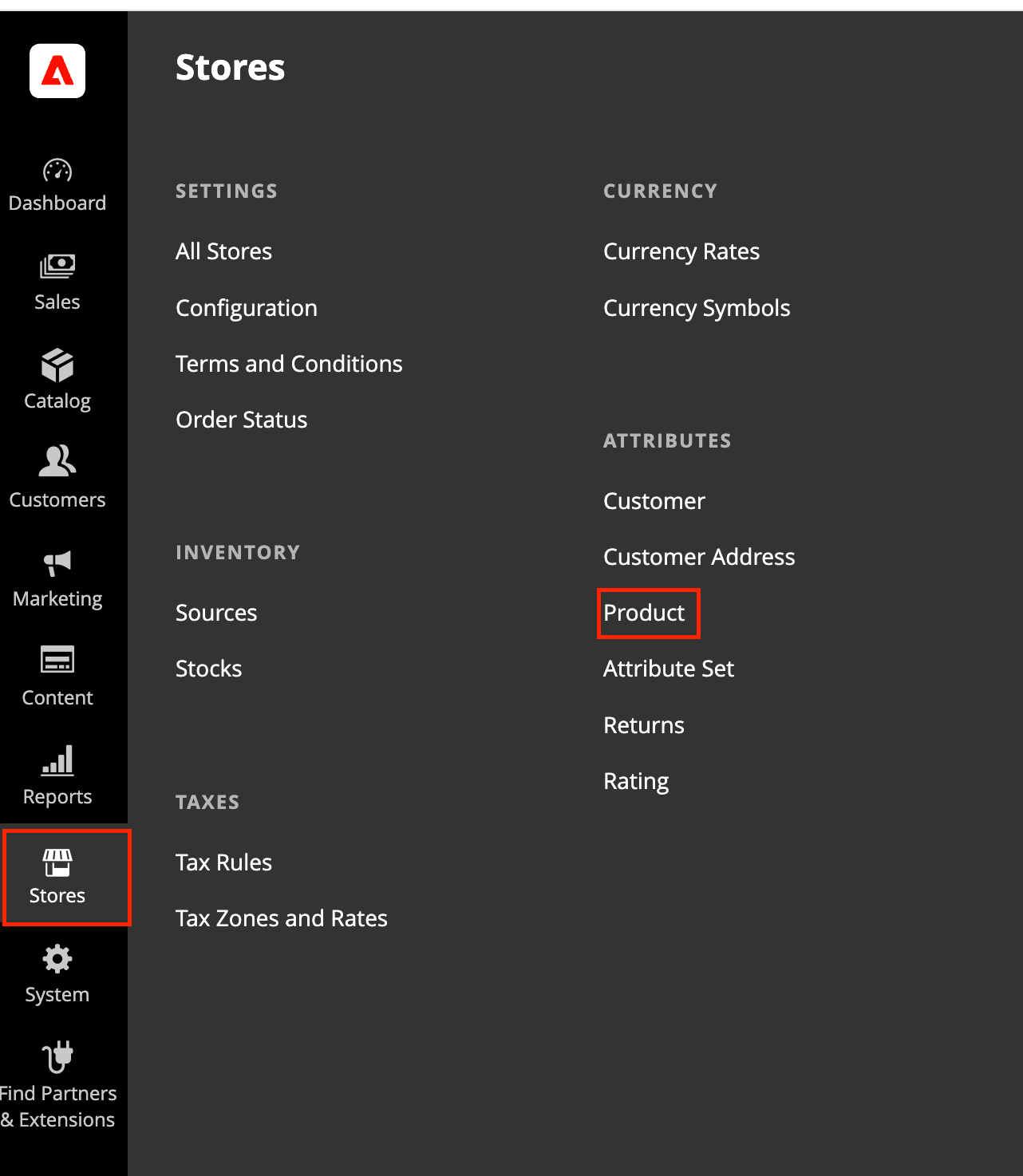
Create two product attributes. Go to Stores, then Attributes, then Product
-
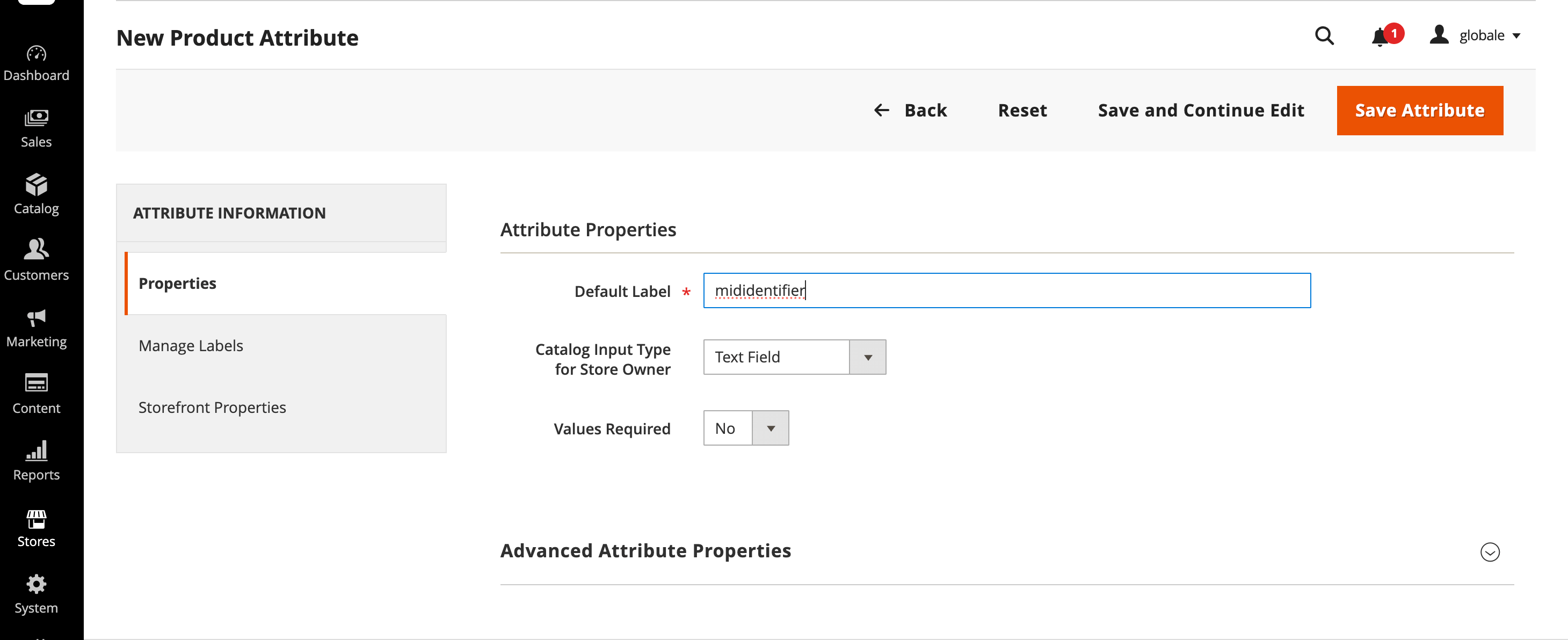
Create two attributes by clicking on the Add Attributes button: Set Catalog Input Type to Text Field and Values Required to No;
-
List them in the Global-e module. Go to Stores, then Configuration, then Services, then Global-e Crossborder, then Global-E API Settings, then Products. Enter
standardcode,mididentifier(comma-separated, no spaces) in both fields: Extra Product Attributes, and Extra Product Attributes From Simple.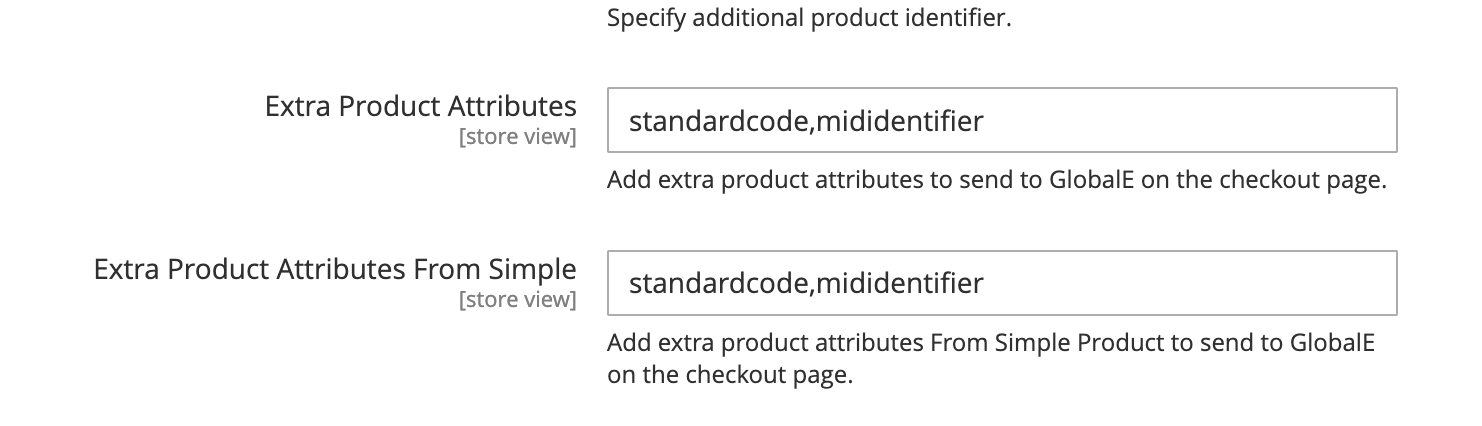
-
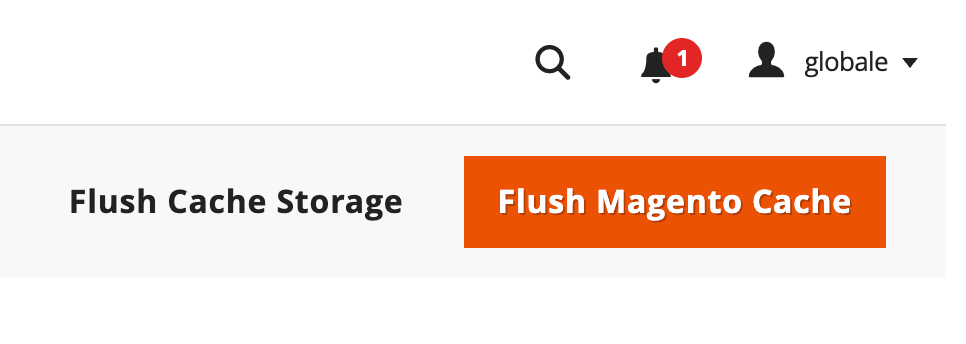
Save and flush cache. Click Save Config, then flush the Magento cache (System, Cache Management, Flush Magento Cache).
- Populate the values on each variant and/or configurable parent.
Key points
One pair of values per cart line. For simple products, populate that SKU’s attributes. For configurable products, set values on the parent, on each child, or both: when a child has no value, the module uses the parent’s value. Both settings must match. Liststandardcode,mididentifier in both Extra Product Attributes and Extra Product Attributes From Simple.
Exact lowercase. The Magento attribute codes and the values sent to Global-e are both standardcode and mididentifier.Omit, don’t fake. When a variant has no value, leave the key out. Never send an empty string, NA, 0 or -.
Keep separate from US MID. Do not use midcode, midname or midaddress for EU PID. If you already list US MID attributes in these settings, append standardcode,mididentifier to the same comma-separated list in both fields.
When values are read: at checkout, when the customer proceeds to Global-e. Updated catalog values apply on that SKU’s next checkout.