

Prerequisites
You can check your plugin version by going to Plugins → Installed Plugins

What you need to do
-
Create the attributes. Go to Products, then Attributes, and create attributes for your standardised identifier and manufacturer code, named exactly
standardcodeandmididentifier. Assign values on each variation that can appear in the cart.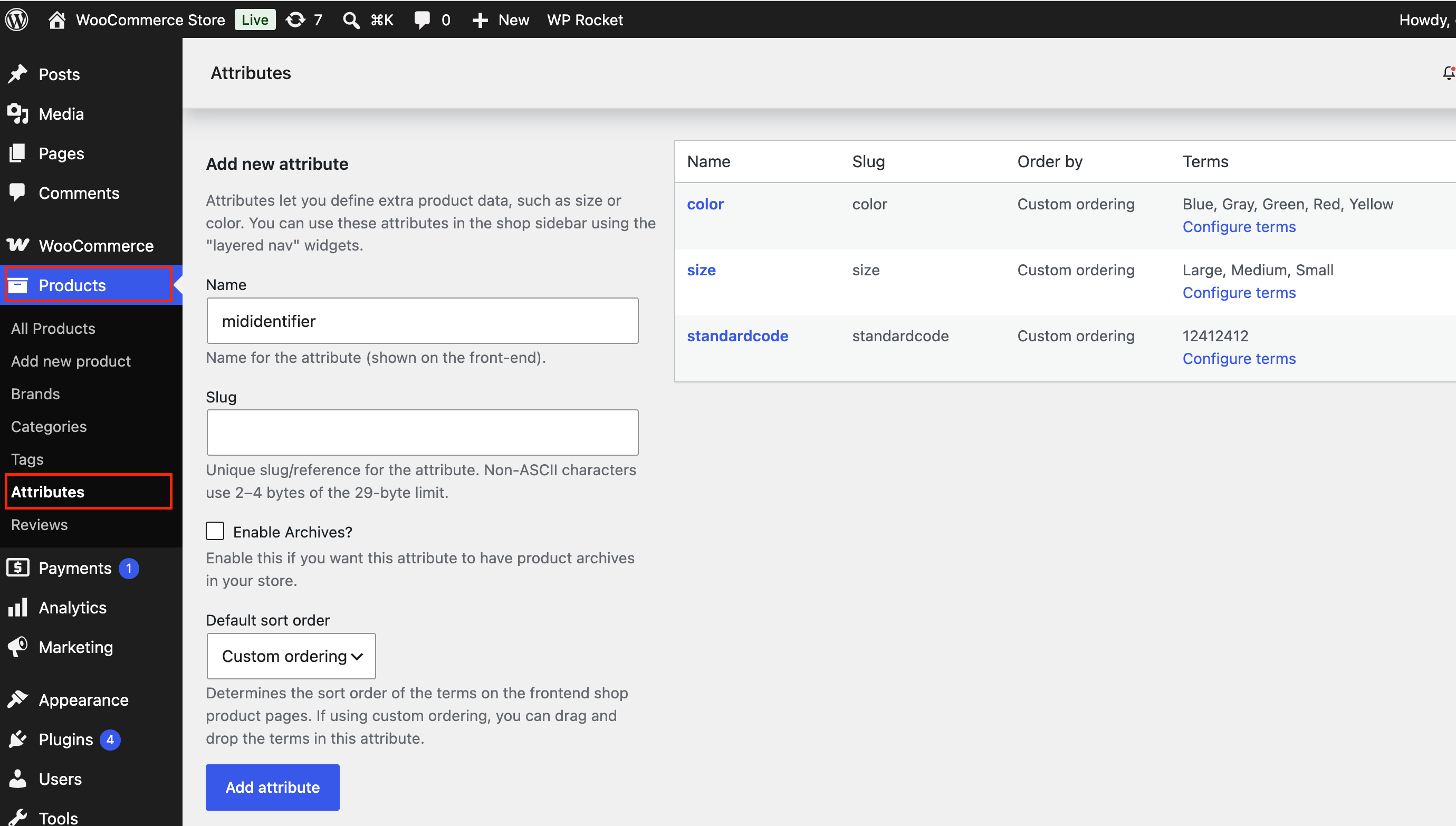
-
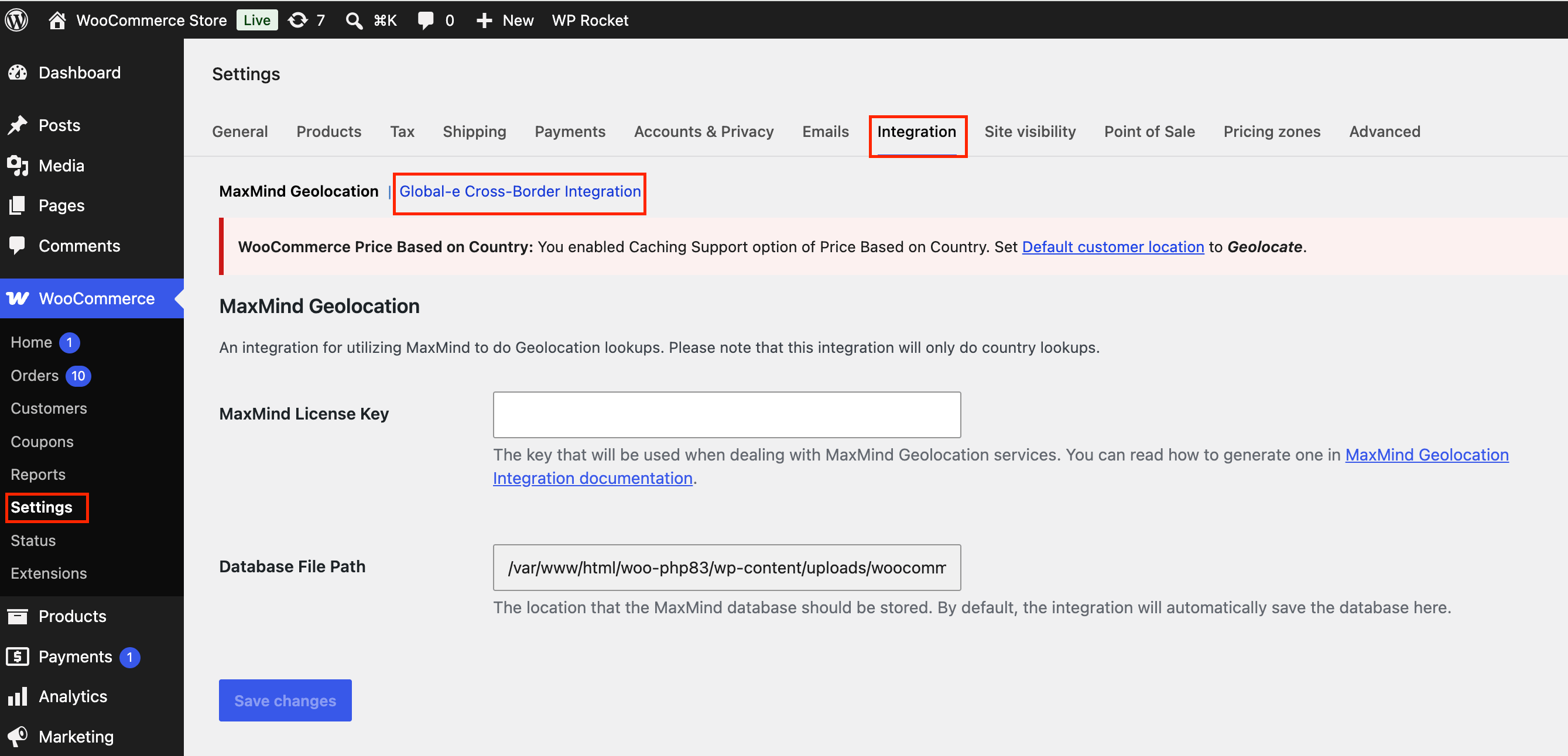
Open the plugin configuration. Go WooCommerce Settings, then Integration, then click on Global-e Cross-Border Integration
-
Under the Products section, in Extra Product Attributes, list the attribute slugs to send on SendCart. Include
standardcodeandmididentifier.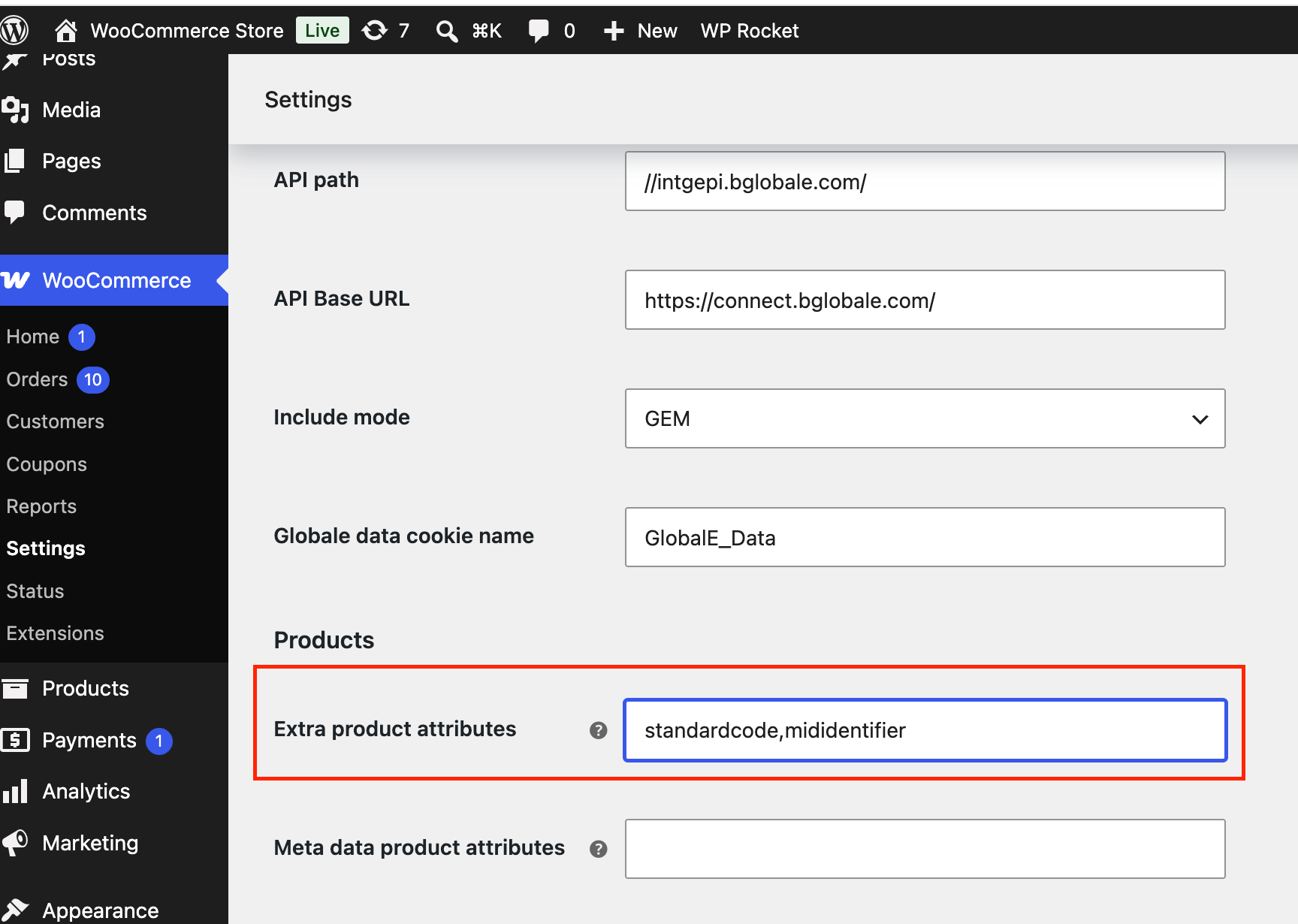
- Save the configuration, place a test order, and confirm both keys appear when values exist and are omitted when blank.
Key points
One pair of values per variation. A value on the parent product alone is not enough when the variation has no value of its own. The plugin sends the attributes you list. Make surestandardcode and mididentifier are listed in the plugin’s Attributes setting.Omit, don’t fake. Leave the key out when a variation has no value. Never send an empty string, NA, 0 or -.
When values are read: at checkout, when the customer proceeds to Global-e. Updated catalog values apply on that variation’s next checkout.
Keep separate from US MID. Do not use the US MID fields for EU PID.